Saturday, November 5, 2011

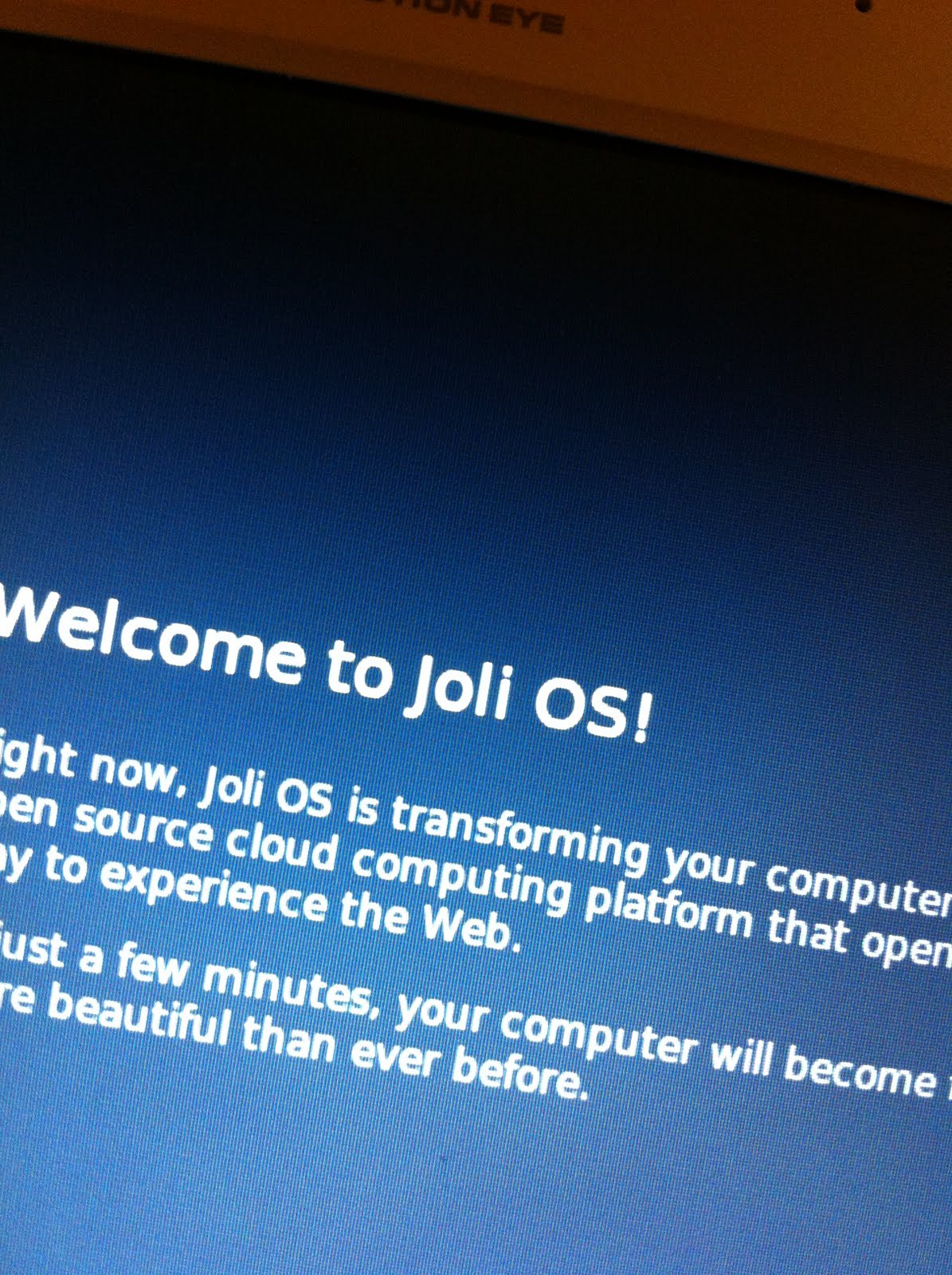
An Evening with Joli OS 1.2

I decided to spend an evening installing and playing with Joli OS 1.2.  The idea is pretty kewl.  It's a linux distro that's optimized for running on stinky old machines, like netbooks.  In an always-connected world, where "applications" are increasingly just web sites, you can slim down your computer to merely a kernel, a web browser, and a handful of "native" utilities.  (iPhone 1, anyone?)

Your login credentials are checked over the internet.  You use a jolicloud.com account or your Facebook login to identify yourself and pull up your customized desktop.  You can use any computer that's running Joli, as long as the computer's owner has allowed guest access.  Or if you're on a completely foreign computer, you can access your stuff as a normal web site.

The interface is rendered in a build of Chromium, and offers you pretty much all the "apps" you'd want to start with.  You've got the usual suspects .. Twitter, Faceyspace, Flickr, YouTube ..  And you can link-up using Gmail, Skype, Google Voice, Pidgin.  Heck, add a link to chatroulette and it looks like just another application on the desktop.  It augments the social functions with work-stuff like Google Docs, Office Live, box.net, and similar "my content lives in the tubes" stuff.  More apps are available for download, just a search away.

There are a few great use-cases for Joli OS.  Say your family has an iPad, but mom or dad take it with them to work, this is a way to use the old netbook (paperweight) to get roughly the same functions (Angry Birds) when you're "slumming it."  If you're reading a Pynchon book in bed, this makes a nice substitute for trying to look words up on your iPhone's dinky screen.  And the men in black can search your hard drive all they like, since your map of Area 51 is safely stored online.

Under the plastic, it's running Debian Squeeze.  Some portions of the configs are copypasted from Ubuntu.  They load a 2.6 kernel, chosen for your particular CPU, and boot through GRUB.  Note, whatever code line it's on, some Ubuntu-specific hacks/fixes don't work like you want them to.  Wanna take it apart?  Alt-F1 gives you a terminal, just like you'd expect, and you have sudo.

The whole install takes a little over 2 GB on disk, so it's not a big investment to throw it in a small partition on your hard drive.  Or, if you prefer, the LiveCD-style bootable usb disk is fully functional.  I'm gonna have a little more fun with it, locally installed, though I don't expect it to replace my "real" OS.  I *do* expect that I'll be able to recommend it to someone with a well-suited environment .. where shared access to old intel hardware is the norm and the users all have facebook accounts.

Mounting an iDisk on Linux (Quick and Dirty)

Here's how to get your iDisk mounted in your home directory on a linux machine.  You'll need to have sudo privileges.  Also, you'll need to type your iDisk username and password by hand, when prompted.  You could automate all of this quite nicely, but I'm only interested in an as-needed one-liner that I'll copy and paste (or script).

First-time, you'll need the davfs2 package installed.  If you're on debian (ubuntu) apt already knows where it is.  If you're on redhat (centos) you'll need to add Dag's rpmforge repo, before yum will be able to find davfs2.

  sudo apt-get davfs2  # for debian/ubuntu users.
  sudo yum install davfs2  # for redhat/centos users who have rpmforge enabled.
  # if yum can't find it, you need to install the rpmforge repo from http://repoforge.org/use/

Then, you can issue this one-liner to make a mountpoint (fine if it exists already); and mount your idisk on it, owned by you.  (You might make this is a script in your home directory, for easy access.)

  sudo mkdir $HOME/idisk ; \
  sudo mount -t davfs https://idisk.me.com/YOURICLOUDUSERNAME \
    $HOME/idisk -o rw,uid=`id -u`,gid=`id -g`

After, when you're done, unmount your idisk, to make sure that all of your changes have been uploaded.

  sudo umount $HOME/idisk

Hopefully this is a good starting point for someone who wants to automate this when a user logs in.  You may need/want to have FUSE involved in that.  I'm not talking about just adding it to /etc/fstab .. there's a "right" way to do it magically per user, and only when they're logged in.  Extra points for letting it remember your password.  Please add a comment if you've done it!

Thursday, November 3, 2011

My Arduino Presentation for Quantified Selves

Arduino is such an easy way to work with data from sensors.  Plenty of folks who want to play with sensors have heard of it, but don't really know what it's capable of.  Is it worth investing time in?  Well, I'm a fanboy, so I cooked up a really quick presentation for Quantified Self in San Diego on the basics.

I was really pleased with how it worked out!  Folks came up to me afterward and said they'd wanted to check out Arduino, but didn't really know what kind of project to apply it to.  And I think the simplicity and affordability of the thing got plenty of people brainstorming.

If you've seen me do a quick, casual presentation, you know that my favorite thing in the world is to introduce folks to really useful tools that get them scheming.  I'm pretty sure I got the ball rolling for a few people.

Installing Puppet on Centos 5 directly from Puppet Labs

photo: wikimedia commons : User:Liftarn
If you want the latest stable release of puppet on a Centos 5 machine, you can get it from Puppet Labs' own yum repo.  Other "usual" add-on repos (epel, fedora, e.g.) can lag by as much as one minor version.  Puppet Labs tries to keep the version in their repo as stable as possible, according to the Puppet professional services guy sitting across from me, today.  (Hi, Carl!)

First, download an rpm to add the puppet labs yum repos.  Then download an rpm to add the EPEL repo.  Puppet requires a couple sneaky ruby pieces, and EPEL has 'em.  (ruby-shadow and ruby-augeas, fyi)

  cd /tmp
  wget http://yum.puppetlabs.com/el/5/products/x86_64/puppetlabs-release-5-1.noarch.rpm
  sudo rpm -Uvh puppetlabs-release-5-1.noarch.rpm
  wget http://download.fedora.redhat.com/pub/epel/5/x86_64/epel-release-5-4.noarch.rpm
  sudo rpm -Uvh epel-release-5-4.noarch.rpm
  yum repolist  # just to see that they actually installed

Both repo definitions enable their main binary repos, for a normal `yum install` command, so there's no need to add flags to enable them.  Source repos and testing versions are disabled, but can be enabled if you have some nutty reason to do it.

You should now be able to `yum install` the puppet client and/or server -- with all the dependencies being available.

  yum install puppet # for a client
  yum install puppet puppet-server # to include the server pieces, as well.
  # actually, pupper-server just adds an init script
  # and some scripts that pretend to be things like puppetmasterd

Ta da!